
Measurement guide
Team collaboration
Share field measurements, photos and notes with your team
A shared measurement becomes useful to a crew when the project, evidence, and access roles are clear. This walkthrough shows a field-to-office handoff using a team workspace, project or layer notes, photos, and a deliberate sync review.
Land Ruler ·
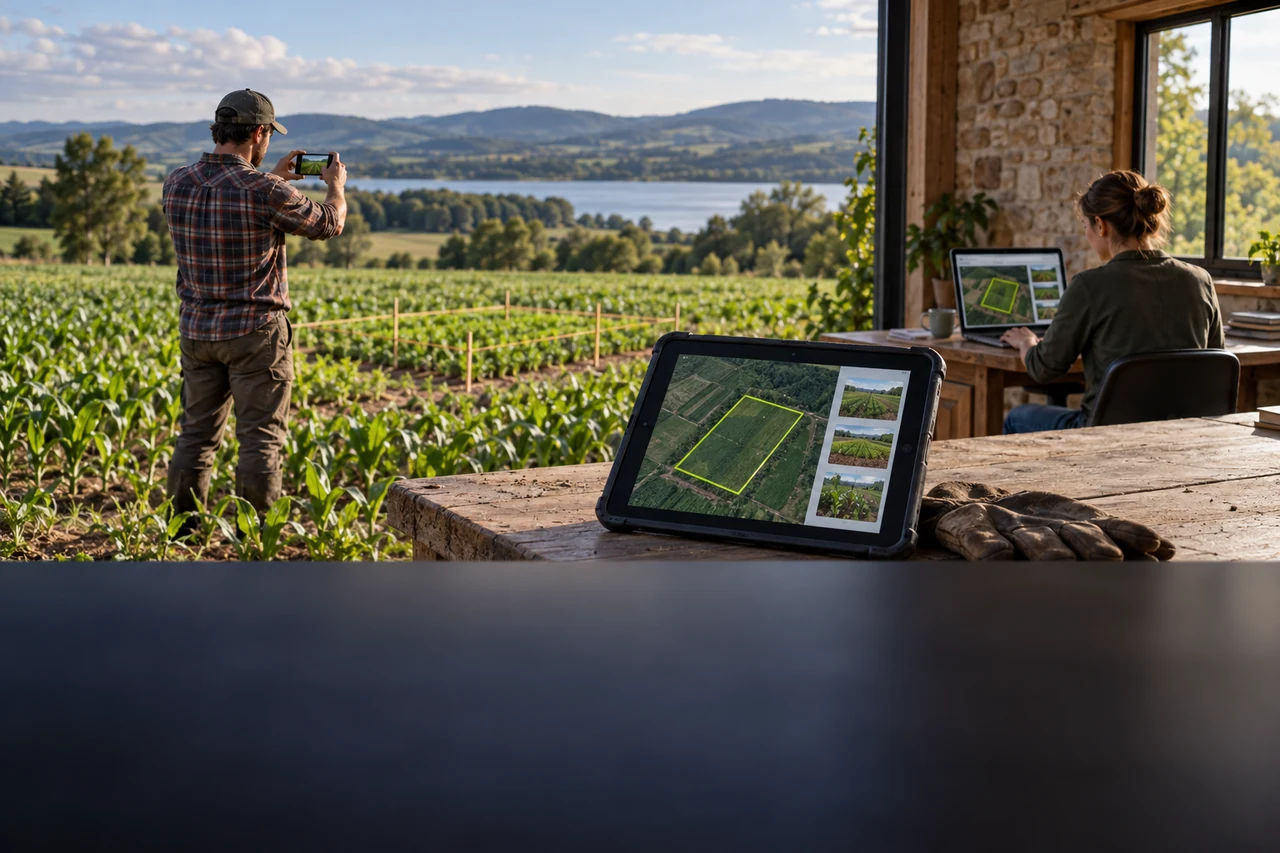
Set up the workspace and roles
A team workspace gives members a shared place for projects. Creating a team requires Land Ruler Pro. An owner or admin can invite members and manage roles; send an invitation to the account email the teammate will use, then make sure they accept it while signed in.
Choose roles according to the work. A Viewer can inspect a project but cannot edit it. A Surveyor can create projects and edit projects they own or created. An Editor, admin, or owner can edit team projects; editing a team project also requires Pro. They control project access, not assignments.
Build a useful field record
Create or open the project for the site and give it a name teammates can recognize. Measure the area or distance using the appropriate map tool, and keep distinct work areas in clearly named layers. A project can hold general photos and text notes; a layer can hold notes tied to that part of the work.
Add photos from the camera or gallery and write a short note that explains what the image shows, which edge or feature you measured, and what needs another look. For example, an illustrative drainage-site record might say that the western edge follows the visible ditch while the tree-covered corner still needs confirmation. Describe what was observed; do not present an estimate as a surveyed boundary.
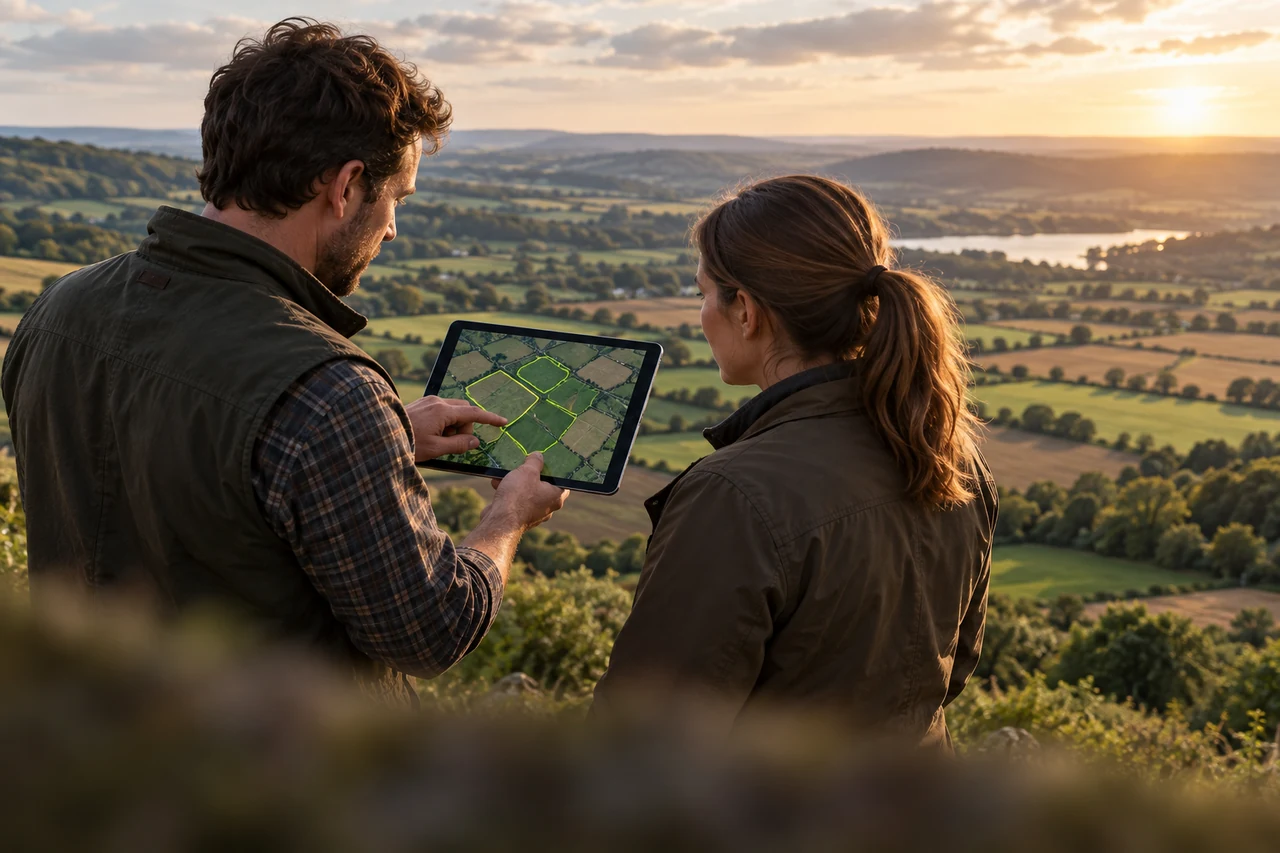
Sync and hand off for review
Save the project and allow cloud sync to complete before asking someone else to review it. The teammate should open the same team workspace and project. If the change is not visible yet, check sync status and connectivity, then retry; an unsynced local edit is not yet part of the shared cloud record.
A client or manager who needs view-only access must be an invited, authenticated team member with Viewer role. There is no public anonymous sharing link in this workflow. If two devices changed the project and a conflict appears, review the local and remote versions and select the complete version to keep; the app does not perform live simultaneous co-editing or automatic merging.
Example and troubleshooting
Illustrative example: a site measurer draws a small equipment yard, attaches two photos showing the gate and a surface transition, and adds a layer note asking the office to confirm the east edge. After sync, an Editor reviews the shape and note; a Viewer can inspect the project without changing it. These are example roles and steps, not a customer testimonial.
Cloud history can help reviewers inspect retained synced snapshots and activity. It is not a complete log of changes that never synced, and local-only projects do not have saved cloud revision history. If the expected snapshot is missing, first confirm the project belongs to the team workspace and the relevant changes synced.
- Invite not received: verify the invited account email and check incoming invitations while signed in.
- Project appears read-only: confirm role, project ownership/creator, and Pro access for team edits.
- Photo missing on another device: allow attachment sync to finish and reopen the project.
Apply it to your work
- Field-to-office project handoff — A field measurer records a site boundary and evidence for office review.
- Keep multiple parcels in one team workspace — An agricultural team keeps separate parcel measurements organized for shared review.
- Park maintenance evidence — A parks crew keeps the measured work area and visit photos in a shared project.
- Surveyor and editor roles — Field staff collect their own projects while an editor can update team projects.
- Let a client review a project — A client or manager reviews a shared measurement without editing it.
- Agree on a subcontract work area — A contractor and subcontractor review the same measured scope and field notes.
Common questions
Can I invite a client without making an account?
No. The viewer must accept an invitation and sign in as a team member.
Can a Surveyor edit every team project?
A Surveyor can edit projects they own or created. Broader team editing requires an Editor, admin, or owner role, plus Pro access.
Does the team workspace provide live co-editing?
No. Members work with synced project records; changes may not appear until sync completes. Conflicts require selecting a version.
What does project history contain?
It shows retained cloud snapshots and activity. Unsynced edits and local-only project revisions may not be available.
Sources
- GPS Accuracy
General GPS uncertainty context for field measurements.